Touchpoint Design Guide
How Relying Parties and EAA Providers design the places where users start sharing or receiving credentials with the d-you Wallet: the d-you Wallet button, the modal that follows it, and QR codes at the point of sale and in print.
Introduction
Touchpoints are the places where users start an interaction with their d-you Wallet. They cover two use cases:
- Verification: A Relying Party requests credentials from the user's wallet.
- Issuance: An EAA Provider issues a credential into the user's wallet.
| Touchpoint | Context | Entry point |
|---|---|---|
| Online | Website or app of the Relying Party or EAA Provider | d-you Wallet button, then a modal with a QR code |
| Point of sale (POS) | A physical counter, for example at a post office | QR code shown on a screen by an employee |
| Printed media from EAA Providers, for example a letter | Printed QR code in a d-you Wallet frame |
The flows and modal screens in this guide have been tested with users and designed for accessibility. Following them gives users the same experience across every service that uses the d-you Wallet, so they recognize the flow and complete it with confidence. We recommend using the flows and modal screens as described here.
Button and logo assets are available under Downloads.
Best Practices
- Place the button where the user makes the decision. Show it on the page where the user logs in, verifies their identity or receives a credential. Don't hide it in menus or secondary pages.
- Give it equal or greater prominence than comparable options. If you offer other identification or login methods, the d-you Wallet button is at least the same size and in a comparable position.
- Start the flow only after the user selects the button. Don't open the modal or trigger a wallet request automatically.
- Use the button type that matches the action. Users should know from the label whether they share data or receive a credential.
- Explain why you request data. Tell users, next to the button, what information you request and why you need it.
- Own the process. The wallet interaction is driven by a technical protocol, and some failure points sit on your side of it. Handle them in your service and tell users what comes next.
Button
Button Types
Each button type has a fixed label. Use the type that describes what happens when the user selects it.
| Use case | Label (DE) | Label (EN) | Use when |
|---|---|---|---|
| Verification | Verifizieren mit d-you Wallet | Verify with d-you Wallet | The user proves information about themselves, for example their age or address, as part of a process on your website. |
| Issuance | Hinzufügen zu d-you Wallet | Add to d-you Wallet | The user receives a credential from you, for example a membership card or a ticket, and stores it in their wallet. |
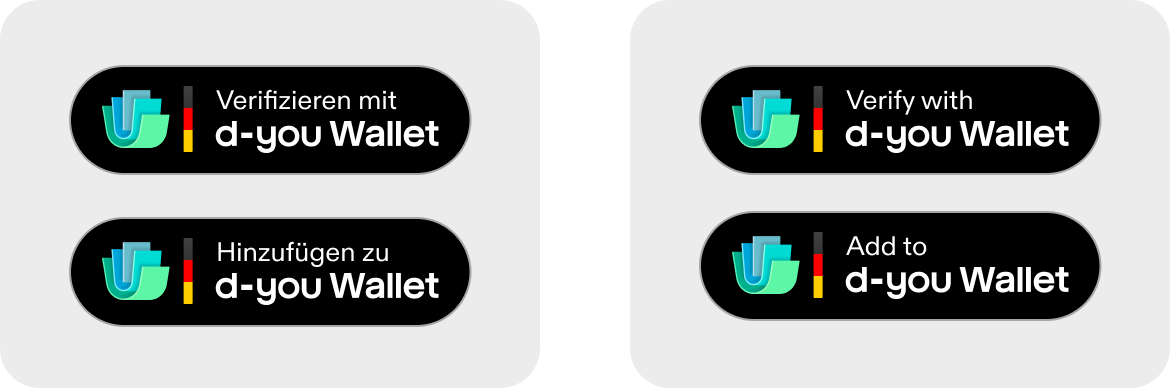
The two button types in German (left) and English (right).
Anatomy
The button consists of the following elements. All elements are fixed and appear in every button type.
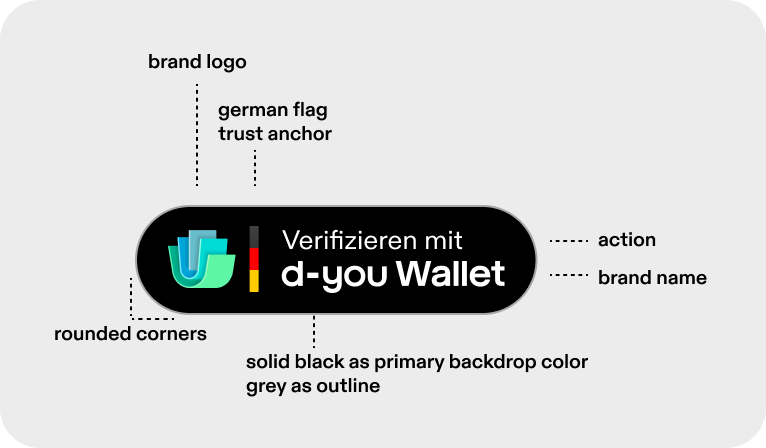
The elements of the d-you Wallet button.
| # | Element | Description |
|---|---|---|
| 1 | Shape | Pill with fully rounded ends |
| 2 | Brand logo | d-you Wallet logo on the left |
| 3 | Trust anchor | Vertical bar in black, red and gold |
| 4 | Action | First line of the label, in regular weight, for example "Verifizieren mit" |
| 5 | Brand name | "d-you Wallet" in bold, on the second line |
| 6 | Fill and outline | Dark fill with a light outline |
The button has one layout: the two-line pill described above. There is no single-line, compact or logo-only version.
Appearance
The button comes in one variant, dark, and works on both dark and light backgrounds. On dark backgrounds, the light outline separates the button from the background.
Size
You can scale the button to fit your layout. Scale it proportionally only, without changing its aspect ratio, and make sure the label stays legible.
Do's and Don'ts
| Do | Don't |
|---|---|
| Use the unmodified asset from the download package | Recreate, restyle or recolor the button, or change its label, logo, trust anchor or shape |
| Keep free space around the button | Place text, icons or other buttons directly against the button |
| Use the label that matches the use case | Use "Verifizieren mit" for issuance, or "Hinzufügen zu" for verification |
| Scale the button proportionally | Stretch, crop, flip or rotate the button |
| Use the complete button with logo and label | Use the logo alone as a button |
| Show the button as a static element | Animate the button or add effects such as shadows, glows or reflections |
| Place the button next to your content | Combine the button with your own logo into a single graphic |
Online Flow
This section describes the recommended flow for touchpoints on the websites and apps of Relying Parties and EAA Providers.
Overview
- The user taps the d-you Wallet button on your website.
- The modal opens.
- The user chooses one of two actions:
- Select the d-you Wallet button in the modal, or
- Scan the QR code with another device.
- The d-you Wallet app opens.
- The modal shows the Loading state and then the Success state.
Entry
The user selects the d-you Wallet button on your website or app. The modal opens on top of the current page.
Device Behavior
The flow is the same on all devices. The QR code and the d-you Wallet button in the modal are always both available, so the user decides which device to continue on.
| Action | Result |
|---|---|
| Select the d-you Wallet button in the modal | Opens the d-you Wallet app on this device |
| Scan the QR code with another device | Opens the d-you Wallet app on the scanning device |
Once the user continues in the wallet app, via the QR code or the button, the modal changes to the Loading state. When the user completes the steps in the wallet, the modal shows the Success state.
Users need the d-you Wallet app to complete the flow. If the app isn't installed on the device, the flow can't continue. Tell users before they start that they need the d-you Wallet app, and offer another way to complete your process.
Verification Flow
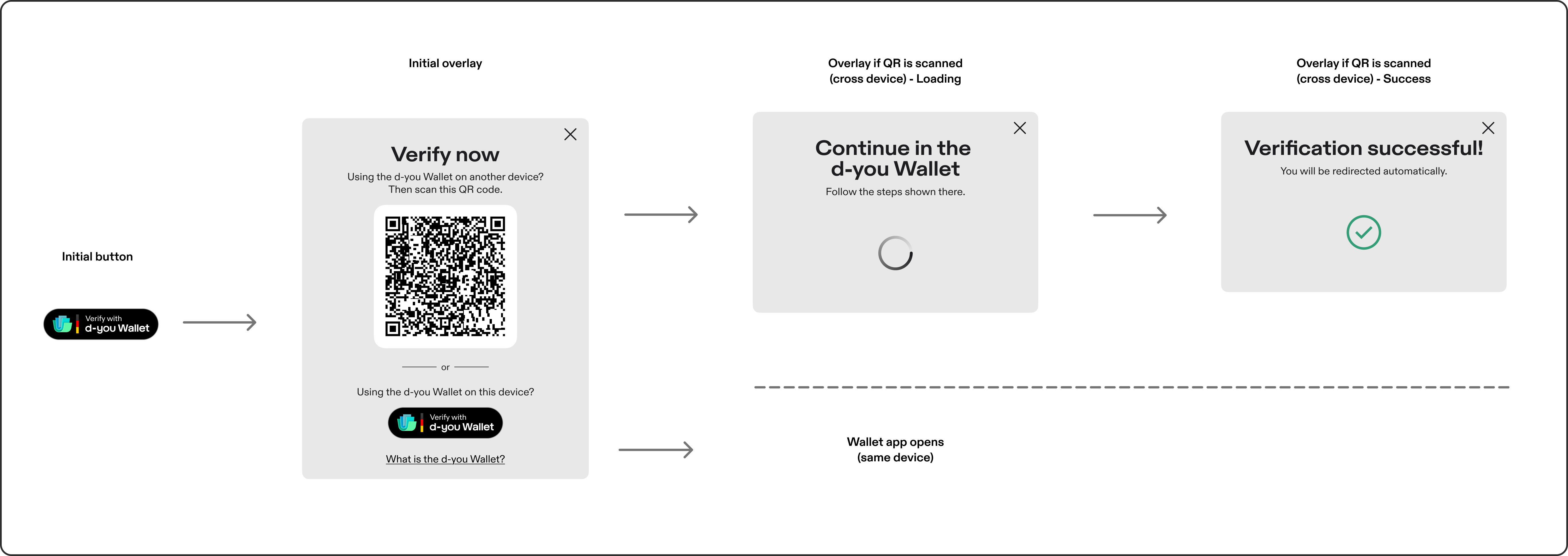
Verification flow: cross-device via QR code (top) and same device via the button (bottom).
- The user selects Verifizieren mit d-you Wallet on your website.
- The modal opens with the heading Jetzt verifizieren, a QR code and the same button.
- The user continues on one of two paths:
- Cross-device: The user scans the QR code with another device. The modal shows Weiter in der d-you Wallet, then Verifizierung erfolgreich! once the user completes the steps in the wallet.
- Same device: The user selects the button in the modal, and the d-you Wallet app opens on this device.
Issuance Flow
Issuance uses the same modal as verification. Only the heading, the success text and the button type differ.
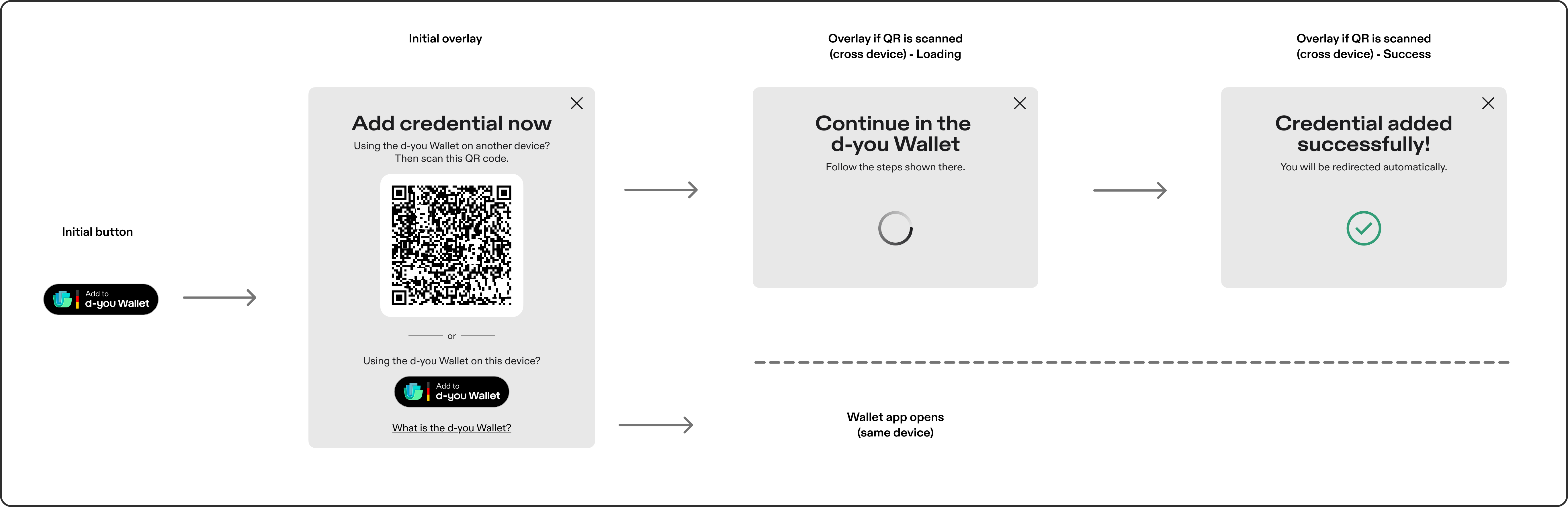
Issuance flow: cross-device via QR code (top) and same device via the button (bottom).
- The user selects Hinzufügen zu d-you Wallet on your website.
- The modal opens with the heading Jetzt Nachweis hinzufügen, a QR code and the same button.
- The user continues on one of two paths:
- Cross-device: The user scans the QR code with another device. The modal shows Weiter in der d-you Wallet, then Nachweis erfolgreich hinzugefügt! once the user completes the steps in the wallet.
- Same device: The user selects the button in the modal, and the d-you Wallet app opens on this device.
Modal Specification
Relying Parties and EAA Providers build the modal themselves. We recommend following this specification, since it reflects the user-tested and accessible version of the flow. On mobile, the modal fills the screen and uses the same elements and texts as on desktop.
Anatomy
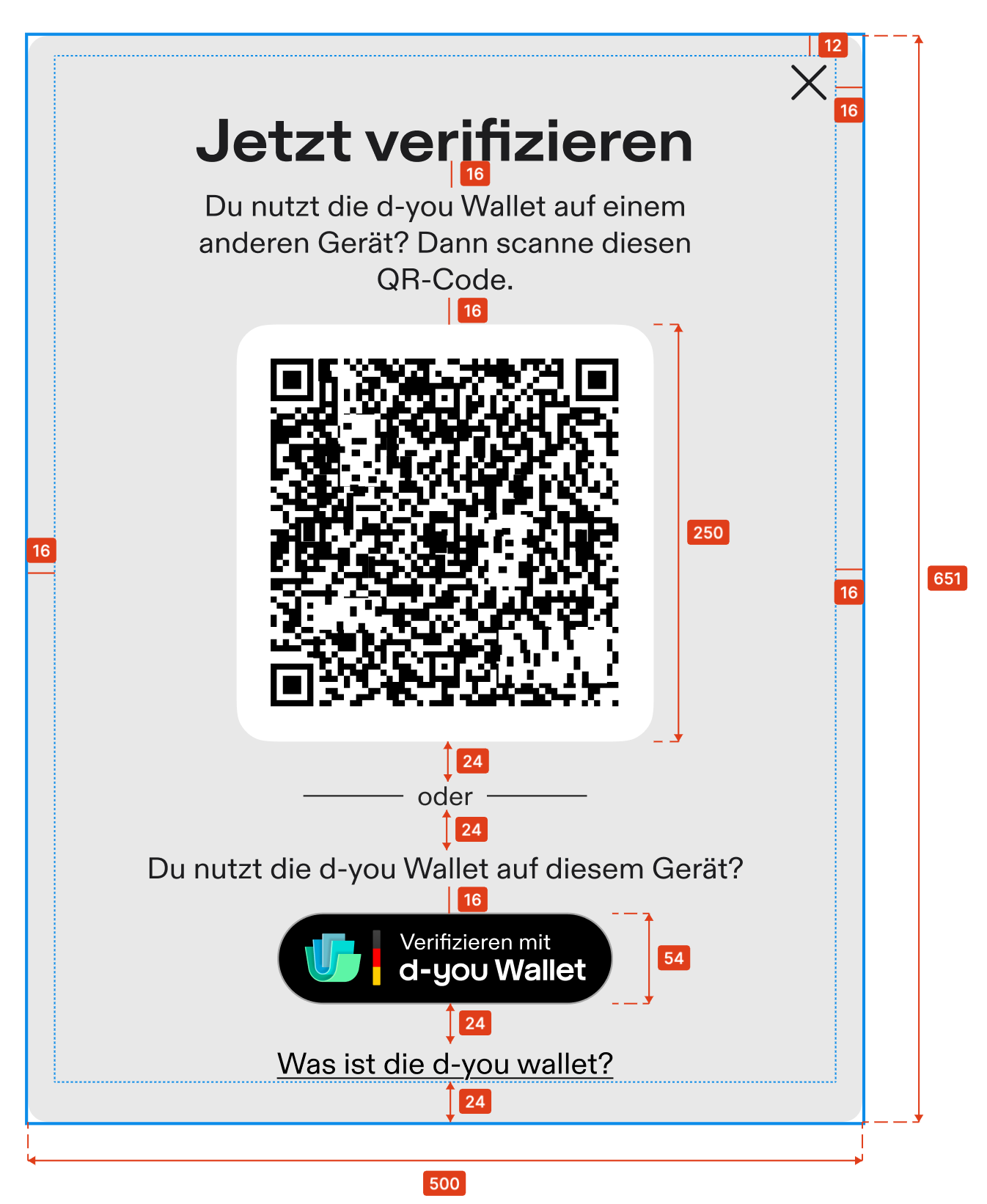
Modal anatomy with spacing in pixels.
From top to bottom:
| # | Element | Verification (DE / EN) | Issuance (DE / EN) | Notes |
|---|---|---|---|---|
| 1 | Close | ✕ icon | ✕ icon | Top right corner. Closes the modal and cancels the flow. |
| 2 | Heading | Jetzt verifizieren Verify now | Jetzt Nachweis hinzufügen Add credential now | |
| 3 | Other-device text | Du nutzt die d-you Wallet auf einem anderen Gerät? Dann scanne diesen QR-Code. Using the d-you Wallet on another device? Then scan this QR code. | Du nutzt die d-you Wallet auf einem anderen Gerät? Dann scanne diesen QR-Code. Using the d-you Wallet on another device? Then scan this QR code. | |
| 4 | QR code | QR code | QR code | On a white background with rounded corners. Recommendation is to add a QR code accessible alternative. |
| 5 | Divider | oder or | oder or | Horizontal lines with the text in the middle |
| 6 | This-device text | Du nutzt die d-you Wallet auf diesem Gerät? Using the d-you Wallet on this device? | Du nutzt die d-you Wallet auf diesem Gerät? Using the d-you Wallet on this device? | |
| 7 | d-you Wallet button | Verifizieren mit d-you Wallet Verify with d-you Wallet | Hinzufügen zu d-you Wallet Add to d-you Wallet | Same button type that opened the modal. Opens the wallet on this device. |
| 8 | Info link | Was ist die d-you Wallet? What is the d-you Wallet? | Was ist die d-you Wallet? What is the d-you Wallet? | Opens the d-you Wallet website |
| 9 | Background color | #E8E8E8 | ||
| 10 | Font | Inter (SIL OFL 1.1) |
States
After the user scans the QR code, the modal replaces its content with the Loading state, then the Success state. If the user selects the d-you Wallet button instead, the wallet app opens on the same device.
| State | Shown when | Element | Verification (DE / EN) | Issuance (DE / EN) |
|---|---|---|---|---|
| Default | The modal opens | See Anatomy | ||
| Loading | The QR code was scanned and the user continues in the wallet app | Heading | Weiter in der d-you Wallet Continue in the d-you Wallet | Weiter in der d-you Wallet Continue in the d-you Wallet |
| Text | Folge dort den angezeigten Schritten. Follow the steps shown there. | Folge dort den angezeigten Schritten. Follow the steps shown there. | ||
| Success | The user completed the steps in the wallet app | Heading | Verifizierung erfolgreich! Verification successful! | Nachweis erfolgreich hinzugefügt! Credential added successfully! |
| Text | Du wirst automatisch zurückgeleitet. You will be redirected automatically. | Du wirst automatisch zurückgeleitet. You will be redirected automatically. |
POS and Print
Outside your website or app, users start the flow by scanning a QR code, either on a screen at a point of sale or on printed media. Both use the same d-you Wallet QR code frame.
QR Code Frame
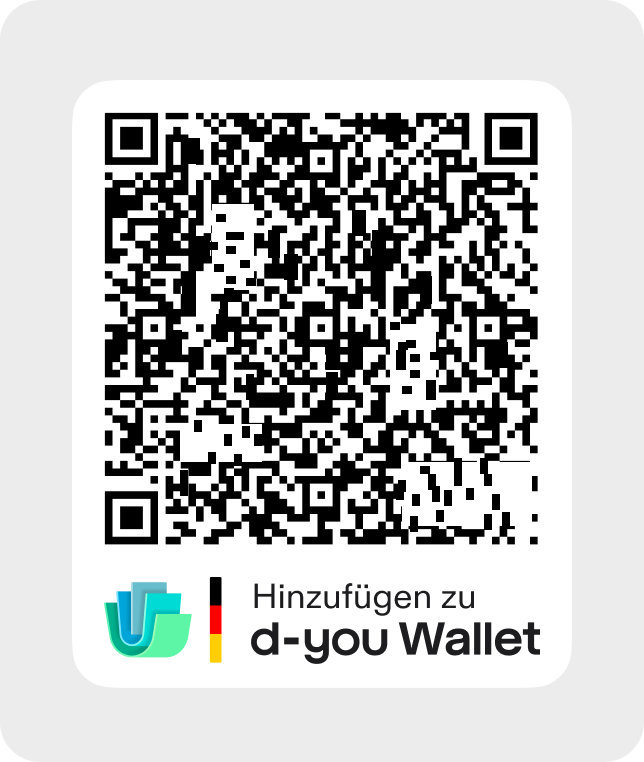
QR code frame with spacing in pixels.
Anatomy
From top to bottom:
- Frame: White background with rounded corners
- QR code: Centered in the upper part of the frame, 8px from the top and side edges
- Branding: d-you Wallet logo, trust anchor and two-line label, 16px below the QR code and 12px above the bottom edge. Available under Downloads.
Label
As with the button, the label matches the use case: Verifizieren mit d-you Wallet (Verify with d-you Wallet) for verification, Hinzufügen zu d-you Wallet (Add to d-you Wallet) for issuance.
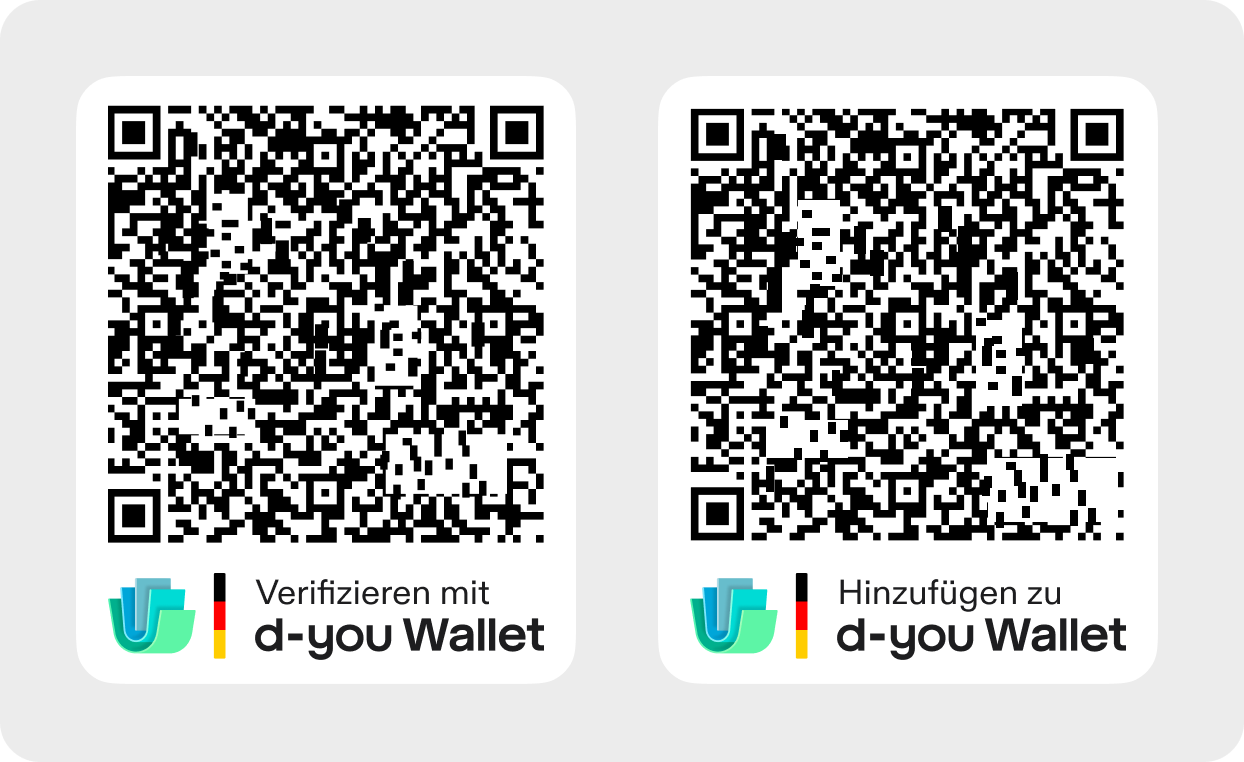
QR code frames for verification (left) and issuance (right).
Variants
| Variant | Used for | Appearance |
|---|---|---|
| On screen | POS | White frame, as described above |
| Printed QR codes from EAA Providers | White frame with a 2px solid black outline on the outside, for placement on white backgrounds |
Do's and Don'ts
| Do | Don't |
|---|---|
| Always show the QR code inside the d-you Wallet frame | Show the QR code without the frame |
| Keep the original colors and proportions of the frame | Change the colors or proportions of the frame |
| Keep the frame free of other content | Add your own logo or other elements inside the frame |
POS
POS touchpoints are used at a physical counter, for example at a post office. An employee shows a QR code on a screen, and the user scans it to share credentials from their d-you Wallet.
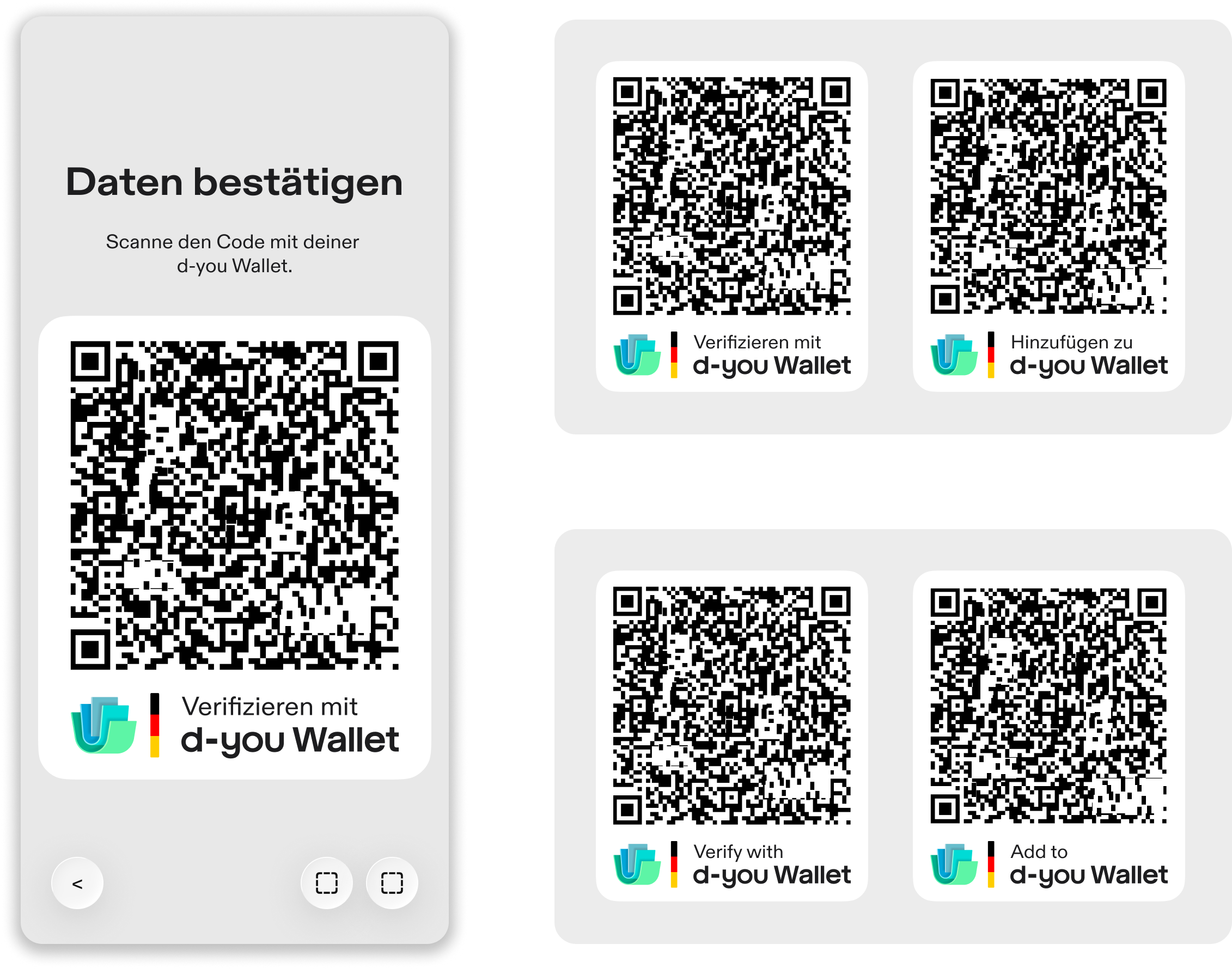
Example of a POS screen (left) and the QR code frames in German and English (right).
Display
Always show the QR code on a screen, in the on-screen variant of the QR code frame. The type of screen is up to you, as long as the user can see and scan the code.
Flow
- The employee starts the request in their system.
- A QR code appears on the screen.
- The user scans the QR code with their phone.
- The user reviews the request in the d-you Wallet and confirms.
- The employee's system shows the result.
Print
EAA Providers can print the QR code, for example in a letter, as an additional way for users to add a credential to their d-you Wallet. Where you use it is up to you. Use the print variant of the QR code frame, with its 2px black outline, when printing on white.
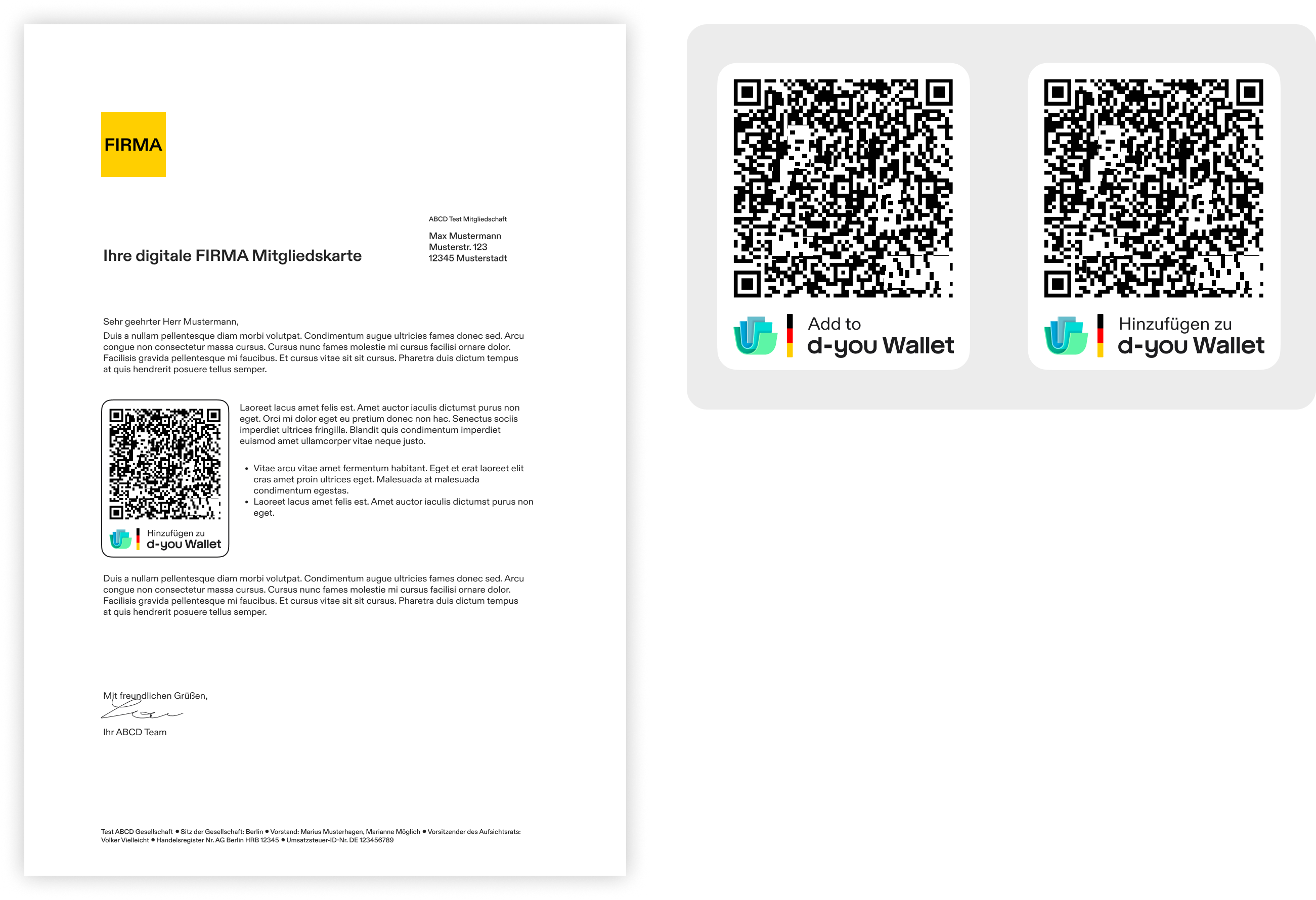
Example of a printed QR code in a letter (left) and the QR code frames for print in English and German (right).
Accessibility
The following points are specific to touchpoints. For the legal framework and general requirements, see the Accessibility Design Guidelines.
Button
- Give the button an accessible name that matches its visible label, for example "Verifizieren mit d-you Wallet".
- Make sure the button is reachable and operable with the keyboard.
Modal
- Move focus into the modal when it opens, and return it to the button when it closes.
- Keep focus inside the modal while it's open.
- Let users close the modal with the Escape key.
- Announce state changes (Loading, Success) to screen readers.
- Provide an accessible alternative to the QR code, since not every user can scan it.
Downloads
Download the d-you Wallet asset package (ZIP, 364 KB)
The package contains every button type and QR code frame label, in German and English:
| Folder | Contents | Use for |
|---|---|---|
svg/button, png/button | The d-you Wallet button, in the Verify and Add types | Online touchpoints, see Button |
svg/lockup, png/lockup | The d-you Wallet branding for the QR code frame, in the Verify and Add types | POS and print, see QR Code Frame |
Use SVG where your platform supports it, since it scales without losing sharpness. PNGs come in 1x, 2x and 3x resolutions for high-density screens.